![[ Click to visit TheOuterLinux's 'Support Me' page ]](../../../../Images/Donate.gif)
![[ QRCode ]](../../../../Images/QRCodes/QRCode_Donate.png)
![[ RSS ]](../../../../Images/rss.gif)
by TheOuterLinux (https://theouterlinux.gitlab.io)
Last updated: 2025/08/22

Essentially, this tutorial will help you have a cartoon-like outline around your 3D models using backface culling and the solidify modifier. DO NOT confused this with "Toon Shading," that is something different.
For a while now, Blender has had built-in outline capability that can be toggled within the Render Properties tab within the "Freestyle" menu, but that only shows during a render. Doing things this way will have the outline visible in the Viewport and therefore open the door to the possibility of having a similar effect in a game engine that also support backface culling.
Why Blender 2.79b? Most videos regarding anything Blender 2.80 or newer have people do an insane amount of steps using the Node Editor and use vocabulary no ordinary person understands. Using the Node Editor for the purposes of 3D modeling with the intent of exporting for game engines is pointless since the game engine's render engine is not the same, hence the emphasis by many to use texture, normal, specular, displacement, and etc. maps.
Node-like systems in software, be it Blender, Godot, or whatever, benefit developers far more than users.
Anyway...
Add a black material to the 3D model. The order of which this black material is located does not matter. Do not add any texture slots to the black material but I strongly incurage you, especially if creating a model for a game engine, to have a texture of some sort already in place on the model like you normally would.
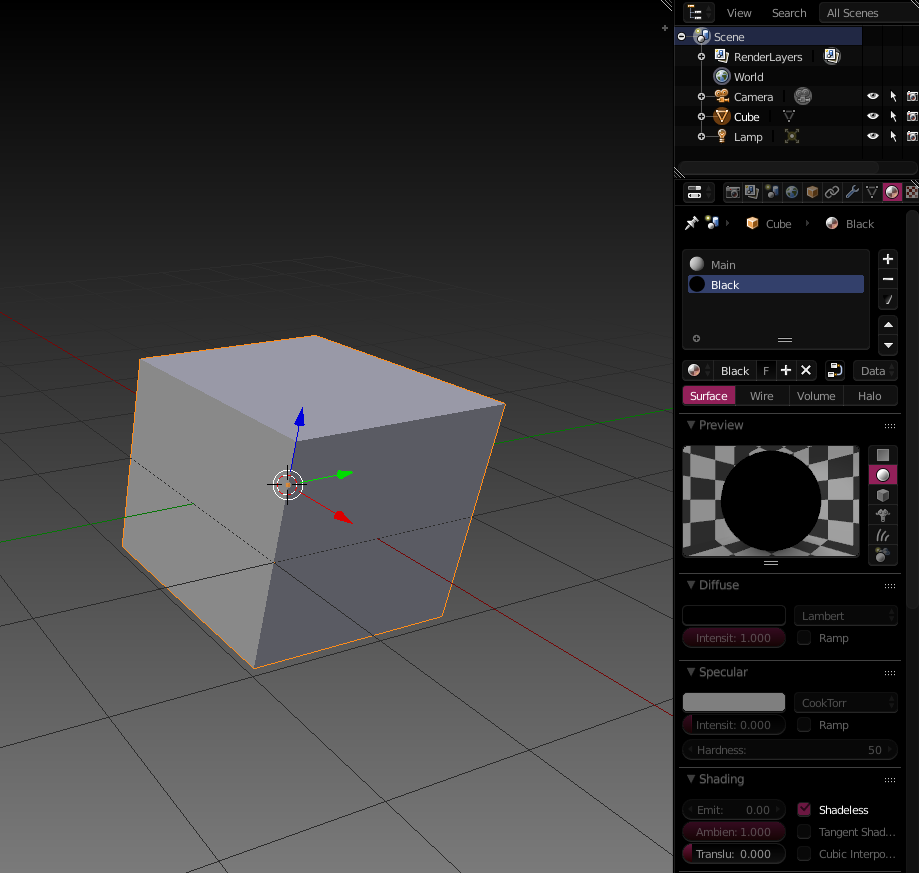
You may have notice that I selected "Shadeless." I am honestly not sure of that makes a difference, but Emission must be zero; this also applies if using a newer version of Blender.
Go to the modifiers tab and add a Solidify Modifier. Check the "Flip Normals" option and adjust the "Thickness" to be about "0.05," or at least at first; the more finely detailed the model, the more likely you will use smaller values.
At the bottom of the Solidify modifier section is a "Material Index Offset" option. Change the number until the black material created in Step 01 is selected. If the black material is the second on in the materials list, this will be "1" as the numbers start at zero. If the black material were to be the 8th listed in the materials section, the number in this case would be "7"; hopefully that makes since. You will know you picked the correct one if the entire model turns black.

In Blender 2.79b, the location of this is different from 2.80 and newer. The backface culling settings can be found in the right-side options panel, which is toggled by default using the "N" keyboard key.
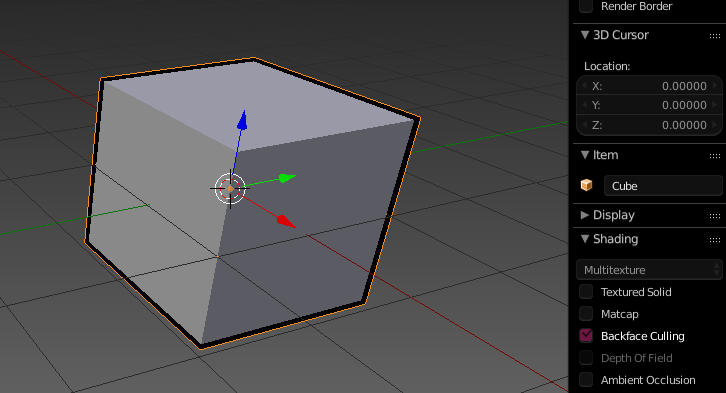
When Backface Culling is enabled, notice how this created the outline in the above screenshot. You can adjust this "line" thickness by adjusting the Solidify modifier's "Thickness" value. I suggested this to be "0.05" so as to be more visible; the default value is somewhat thin.
As long as the game engine in question has "Backface Culling" options, the above method should work along with more complex model formats, such as Collada (*.dae), that hold more information than those like OBJ. Model format like OBJ may be able to work just fine, but you are also more likely going to have to do a few more steps within the game engine. For example, OBJ's exported from Blender with the tutorial steps above applied will not automatically show the outline in the game engine 'CopperCube'. To get the outline effect to show in CopperCube, you have to apply a texture to the slot that was the original "black" material and then you can remove that texture from the slot and then it will show. Matter of fact, in theory, you may be able to have the "black" material have a graphite/pencil-like texture for a more "sketchy" outline if setting the material to use transparency.
If testing exported models, make sure that they are UV unwrapped and have a texture of some sort, even if it is just a bunch of simple, solid colors. When exporting a DAE with Blender, make sure to have "Apply Modifiers" and "Export to SL/OpenSim" selected for better game engine compatibility, or at least that is what I have noticed so far.
If a material has a texture associated with it but is missing, the outline regarding that texture may not show. For example, a 3D model of a person may have a material for skin and a texture assigned to it. The same model may have a material for the shirt but no texture assigned to that material. If the skin texture image is missing when that model is imported to a game engine, the skin may not have and outline but the shirt does. Things can get odd with this stuff.